

JKT88 APK Download
JKT88 is an Indonesian gambling platform offering slots, live casino games, and sports betting.
Download
Android package (APK)
v1.0.533.4 MB
 Download for Android
 Join Telegram Channel
Download not started? Try again
This package is for Android phones and tablets. Other operating systems cannot install APK files directly.
This APK cannot be installed on an iPhone or iPad. Copy this page link and open it on an Android device.
You can save the APK on your computer and transfer it to an Android phone or tablet for installation.
Main Features
Slot Games
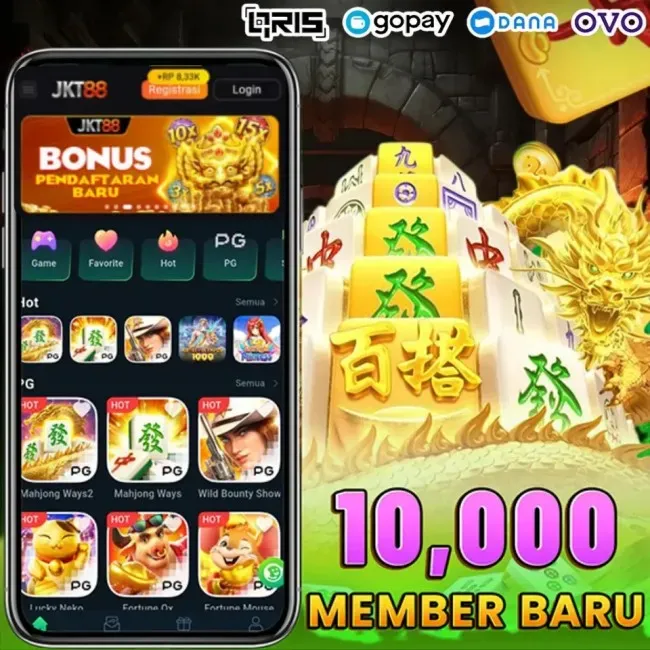
The slot catalogue includes Starlight Princess, Sweet Bonanza 2500, Gates of Olympus, Wisdom of Athena and Wild Bounty Showdown. Each title has its own paytable, symbols and bonus mechanics.
Fishing and Arcade Games
Fishing titles include Royal Fishing, All-Star Fishing and Dinosaur Tycoon. These broaden the selection beyond spinning reels, adding games built around on-screen targets and action-based play.
Live Casino and Table Games
JKT88 lists baccarat and Sic Bo among its casino options, alongside roulette and blackjack. Each game follows its own betting and payout rules.
Sports Betting
Sports betting forms another part of the platform, with SBO Sports among the listed services.
Platform Highlights
Different Slot Formats
JKT88’s slots vary in more than theme. JILI’s Fortune Gems 3, for example, uses a compact 3×3 grid with five paylines, symbol splitting and win multipliers. This gives it a different structure from larger-grid slots with cascading symbols.
Distinct Fishing Features
Mega Fishing includes torpedoes, a railgun and a special octopus wheel. These are features of that particular game; other fishing titles have their own mechanics.
A Broad Mix of Themes
The catalogue spans Greek mythology, candy, mahjong tiles and Western adventure. Gates of Olympus and Wisdom of Athena share a mythology theme, while Sweet Bonanza 2500 and Wild Bounty Showdown offer different settings and visual styles.

Download and Install
-
Get the APK
When a download is available, select the download button and check your browser's downloads for progress.
-
Find the file
Find the APK in your browser's downloads or the Downloads folder in your file manager.
-
Install the app
Open the file on your Android device, review the app information and follow the installation prompts.
Frequently Asked Questions
Downloads and Files
What if nothing happens after I select Download?
Check your browser's downloads to see whether a download has started. A download request does not mean the file has finished downloading. If a download is in progress, wait rather than selecting the button repeatedly and creating duplicate files.
If no download appears, check for browser warnings or errors, then use Try again below the download button. If no download link is available, repeated attempts will not help. Try later or report the link problem.
What if the download is slow, interrupted, or the link has expired?
Check your connection and available storage, and use a stable network. Try resuming the download in your browser. If it cannot resume, cancel the incomplete download and start again.
A 404, missing file, expired link, or access denied message may indicate a link or permissions problem. Reopen this page for the current link. If it still fails, record the error and report it. You can also consult Chrome download troubleshooting。
Where is the downloaded file, and what if it will not open?
Look in your browser's downloads or the Downloads folder in your phone's file manager. Make sure the download has finished before opening the APK.
If the saved file is a webpage, an error message, or an incomplete temporary file, return here and download it again. Do not simply rename it to .apk. XAPK and APKS files also cannot be installed as ordinary APKs by changing their extension; check the installation instructions for that version.
Can I install this on an iPhone, iPad, or computer?
This page provides an Android package, which cannot be installed directly on iPhone, iPad, Windows, or macOS. You can save the file on a computer and transfer the complete APK to an Android phone or tablet for installation.
Running it in an Android emulator also depends on the emulator and app's compatibility. Support is not guaranteed by this page.
Installation and Verification
What if installation from this source is not allowed?
If the message only concerns installation permissions, first confirm that you trust the file's source. Follow the system prompts and allow installation only for the browser or file manager opening the APK. You can revoke this permission afterward. Menu names vary by device and Android version.
Warnings about harmful apps, unverified developers, or device administrator restrictions are different issues. Follow the specific warning rather than treating it as a source-permission prompt. For managed devices, contact your administrator.
What if I see an installation, parsing, or compatibility error?
- Confirm that the download is complete and the phone has enough free storage.
- Check the required Android version, processor architecture, and supported devices. The Android version is not the only requirement.
- If an app with the same name is already installed, keep it while checking that the update comes from the same distribution channel and has a compatible signature.
If installation still fails, record the full error message, phone model, and Android version. Do not uninstall the existing app just to experiment, as this may erase local data.
Should I continue if my browser or Play Protect shows a warning?
Stop installation, read the full warning, and check the download source and file information. Do not assume warnings are false alarms or disable security protection just to install the app.
If you cannot verify the source, or the system warns that the file may be harmful, cancel the download or installation and use a verified source. For details, see Google Play Protect help。
How do I check the version, package name, and MD5?
Compare the version and size listed in the download area. When supplied, the package name and MD5 appear under File Information. Use a checksum tool to calculate the completed file's MD5, then compare it with the listed value.
If the checksums differ, do not install the file; recheck the version and download. A matching MD5 only helps compare files. It does not prove that an app is safe, official, or compatible with your device.
Updates and Troubleshooting
Can I update an existing installation without losing progress or data?
Apps with the same name are not necessarily compatible updates. Package names, signatures, and versions must also be compatible. Prefer updates from the original distribution channel; do not force an update with a different signature or an older version.
Before updating, check your account and cloud-sync status, and back up data if the app supports it. Uninstalling the app or clearing its storage or data may delete local saves, settings, and downloaded resources. Signing in again may not restore them.
What if the app crashes, shows a black screen, or will not open?
Close and reopen the app, restarting the device if needed. Check compatibility, available storage, and app updates. If only this app has a problem, report the error to its developer.
Distinguish between clearing the cache and clearing data or storage: the latter removes app data, so back up first. See Android app troubleshooting。
Why does the installed app download more resources and use more storage?
The listed size is the installation package. Unpacking, caches, and additional in-app resources increase storage use. Some games download maps, audio, or other content on first launch; follow the app's prompts.
Check available storage beforehand and use a stable connection for resource downloads. If space is low, remove unneeded files rather than deleting app data as if it were only cached content.
What if I cannot sign in, connect to the server, or find my progress?
Check your internet connection and system date and time, then look for official maintenance or outage announcements. Confirm that the distribution channel, region or server, and account match those used previously.
Account recovery, bans, payments, and cloud-save issues must be handled by the app's operator. Reinstalling usually will not resolve them. Share the error message with support, but never disclose passwords or verification codes.
Still need help? Keep this page's link, the app version, phone model, Android version, and a screenshot of the error, then visit Contact to report the issue. Hide account details and other personal information in screenshots.